
E-learning and Language Quick Start
Core Principles of Equine Assisted Services
This guide will help you log in, explore a sample lesson and choose the language support available to you. Keep it open in a separate tab while you try the steps.
Before you begin
For the best study experience, we strongly recommend using a desktop or laptop computer. Lessons include videos, images and written content, which are easier to view and follow on a larger screen.
The YouTube mobile app may not offer all subtitle languages or automatic translation options. To access the widest range of available language options, open the videos in a web browser on your computer.
1 Log in to your learning account
Login page https://hipoterapie-kurzy.com/login-2/
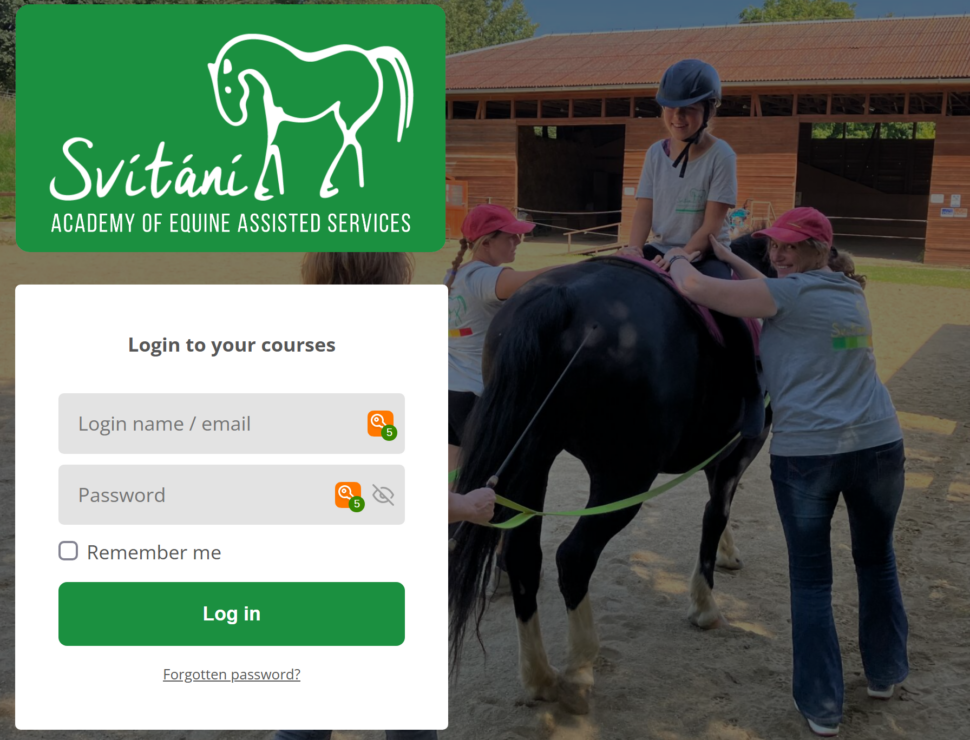
- Enter your email address in the “Login name” field. Use the same email address you provided when registering — the one where you received your invoice and all course-related information.
- Enter your password in the “Password” field.
- Select “Log in”.
Use the account details provided for your course access. If you cannot find your access email, check your spam or junk folder. Only select “Remember me” on your own device.
If you have forgotten your password
- Select “Forgotten password?” below the login form. Follow the instructions to request a password reset using the email address associated with your account.
- Check your inbox and spam folder for the reset email.
- Follow the link in the email to set a new password.
- Return to the login page and sign in.
My Courses Library
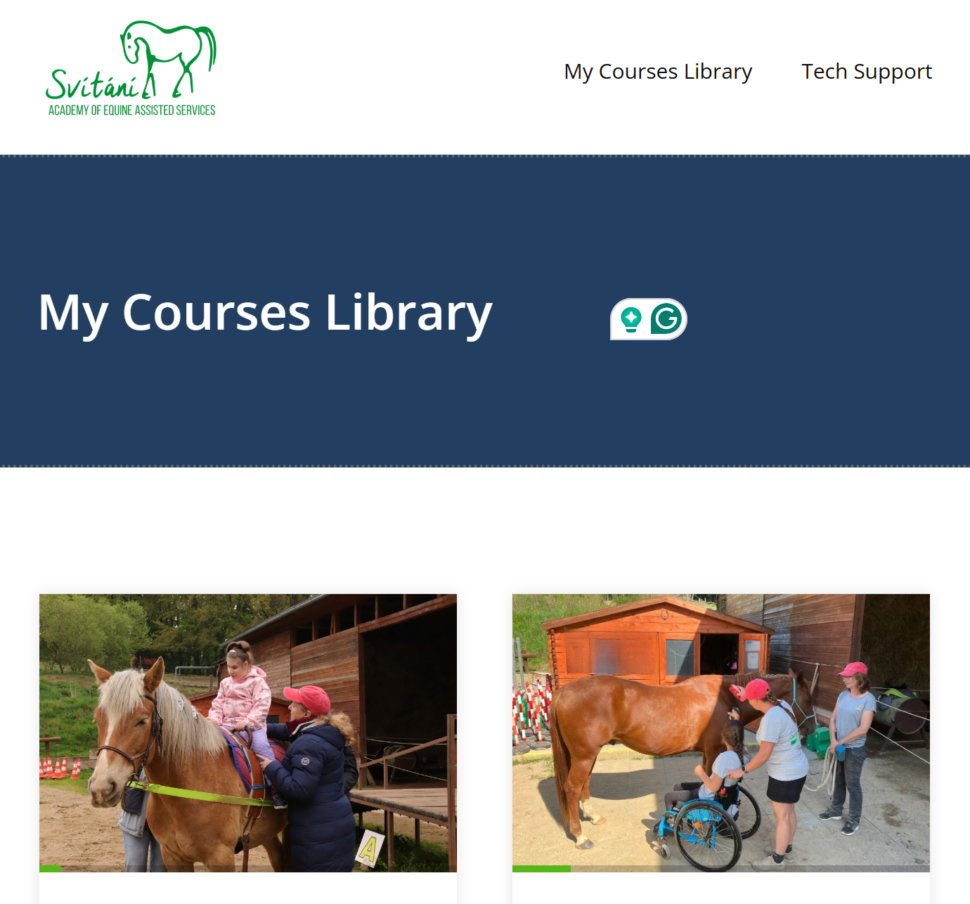
After logging in, you will enter My Courses Library, where you will see the courses you have purchased.
Select Core Principles of Equine Assisted Services to open the course and start learning.
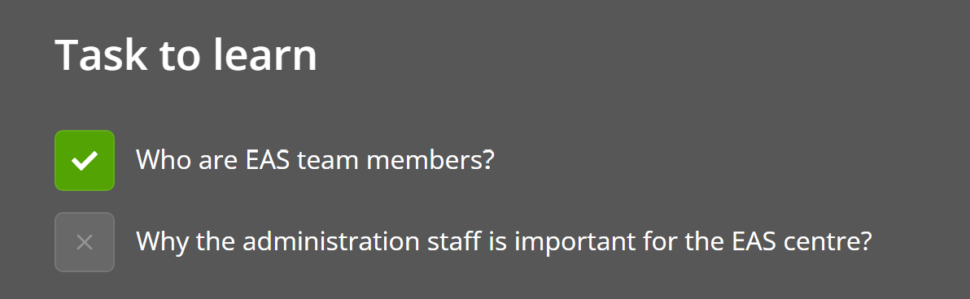
You course chapters follow a set sequence. Answer all the review questions at the end of each chapter, then click the completion box so that a green tick appears. Complete any module quizzes and click the completion box beneath them before continuing.
2 Explore a sample lesson
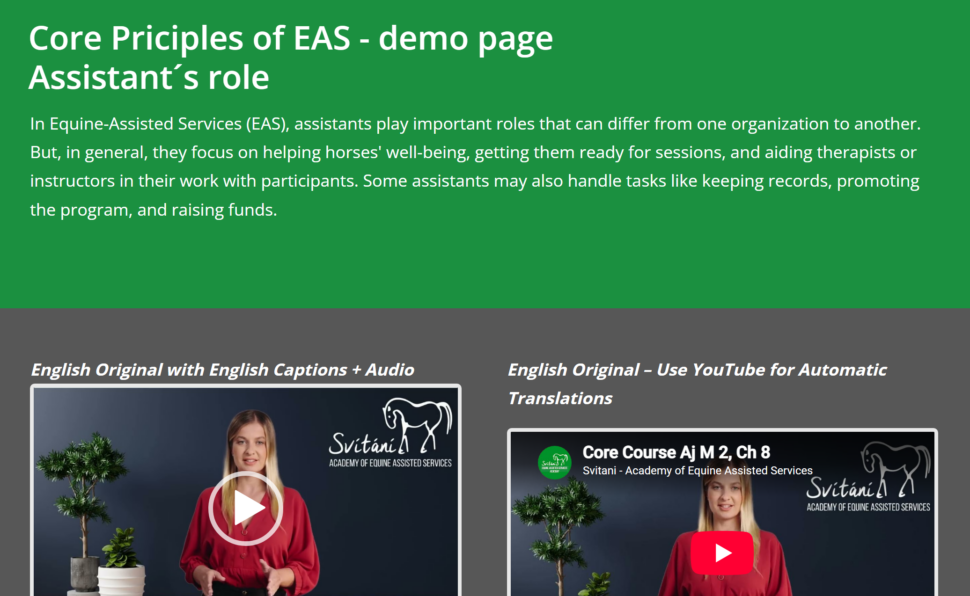
Sample lesson https://hipoterapie-kurzy.com/akce/core-principles-in-eas/demo-page/
You can use this page to practise playing a video and choosing language options before starting your course.
- Scroll to the video players.
- Play a short section of the English video, then pause it.
- Scroll down to find the language-specific audio recordings and the written lesson content.
- Try the subtitle and translation instructions below.
The sample page demonstrates a lesson. It does not give access to the full course. Some links to other lessons may display an access restriction.
3 Choose subtitles for a YouTube video
On a computer
- Open the video and start playback.
- Move your pointer over the video to display its controls.
- Select the “CC” button to switch on subtitles, if available.
- Select the settings cog, then “Subtitles/CC”.
- Choose your preferred language if it is listed.
- If your language is not listed, look for “Auto-translate” and choose a language from that menu, where available.
If “Auto-translate” does not appear, select the available English captions first, then reopen the subtitle menu. If the option is still missing, open the video directly on YouTube and try there.
On a phone or tablet
Tap the video to reveal its controls, then open the settings and look for “Captions” or “Subtitles”. The available options may differ between the app and the browser. If you cannot find automatic translation or your language, try a computer.
Subtitles translate the words displayed on screen. They do not change the spoken audio. Automatic translations may contain errors, particularly in specialist terminology.
Practice video
4 Translate the written lesson content
Open the lesson you want to read, then follow the instructions for your browser below. Menu names may appear in your device’s language.
Google Chrome on a computer
- Right-click on an ordinary text area of the lesson page.
- Select the translation option.
- Use the translation panel near the address bar to choose your preferred language.
- If necessary, open the panel’s additional options and choose another language.
- If translation is unavailable, open Chrome’s Settings → Languages and check that “Use Google Translate” is enabled.
Microsoft Edge on a computer
- Right-click on the lesson page and select the translation option.
- Open the translation icon in the address bar.
- Select your preferred language and confirm the translation.
Mozilla Firefox on a computer
- Open the browser menu.
- Select “Translate page”.
- Choose your preferred language and select “Translate”.
Safari on a Mac
- Open the lesson page.
- Look for the translation button in the address bar.
- Select it and choose an available language.
Safari only offers translation for supported languages and regions. If the button or your language is missing, use “An alternative for any browser” below.
Phones and tablets
Open your browser’s menu or page controls and look for “Translate” or “Translate page”. Select your preferred language if it is available. The position of this option depends on your browser and device.
An alternative for any browser
If your browser cannot translate the page into your language:
- Select and copy a short passage from the written lesson.
- Open Google Translate in a separate tab using the link below.
- Set the original language to English and choose your preferred translation language.
- Paste the passage into the text box and read the translation.
- Return to the lesson to continue studying.
Google Translate
https://translate.google.com/
To return a translated page to English, reopen your browser’s translation controls and choose the original language or the option to show the original page.
Page translation and video subtitles are separate settings. Translating the page does not automatically translate the video, audio, images or downloadable documents.
If an instruction or professional term is unclear, compare it with the English original and ask your tutor for clarification.
5 Find the format and language you need
The sample lesson includes English videos, separate audio recordings labelled by language, and written content below the players. The separate audio options on the sample page are Czech, Portuguese and Spanish.
- For translated video subtitles, use the YouTube version.
- For a separate audio recording, find the language label and press play on the player beneath it.
Pause any other player first so that two recordings do not play at once.
6 If something does not work
I cannot log in
I can log in but I cannot access my course
The video does not play
The video plays, but I cannot hear anything
I cannot find subtitles in my language
The translation does not make sense
I still need help
Reply to your course welcome email or contact students@hipoterapie-kurzy.com.
Include:
- Your name and the email address used for enrolment.
- The lesson title or page link.
- What you were trying to do.
- What happened, including any error message.
- Your device and browser.
- A screenshot, if it helps explain the problem.
Never send your password.
Ready to begin
Check that you can:
- Log in to your account.
- Play and pause a lesson video.
- Find the available subtitle or audio options.
- Translate written content if needed.
- Find help if you get stuck.